 Keet Support
Language Packs 📦
Go to 'Language and translations' / 'Language packs' to see each downloaded translation language pack, its size, and delete it to free up device storage.
What is a language pack?
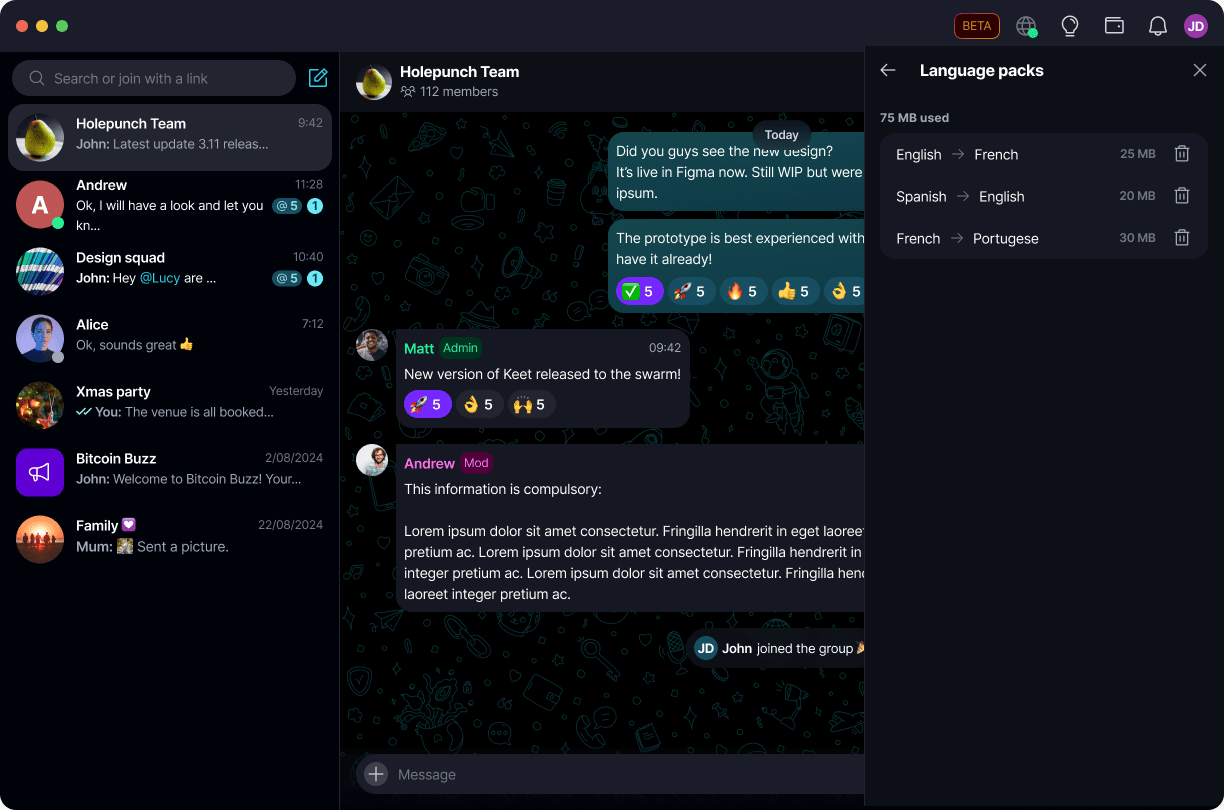
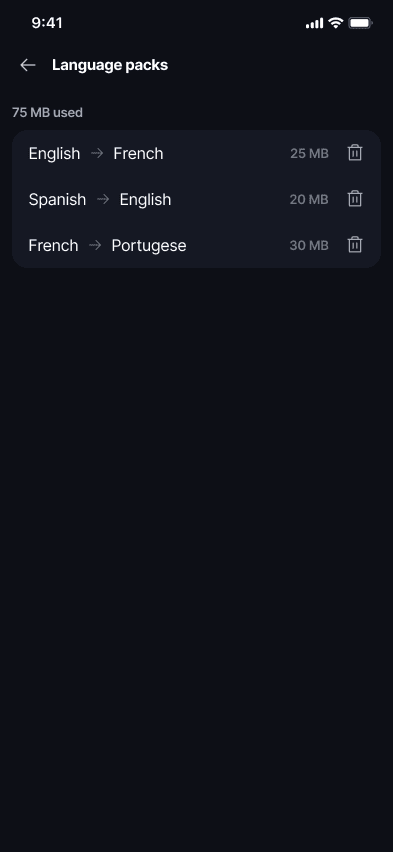
Whenever you translate a message using a language pair you haven't used before, Keet downloads a small language pack for that pair - the English and French pack, for example, is roughly 25 MB. Once downloaded, the pack is kept on your device so the same pair doesn't need to be downloaded again.
Each pack works in both directions, so the English and French pack covers English to French as well as French to English. You only download a pair once, no matter which way round you translate.
If you've translated messages between many different languages, these packs can add up. The Language packs screen lets you see exactly what's installed and remove packs you no longer need.
'Language' settings were renamed to 'Language and translations' to reflect message translation settings living alongside your app language. 🌐
Open Language packs
-
Go to 'Settings' and select 'Language and translations':
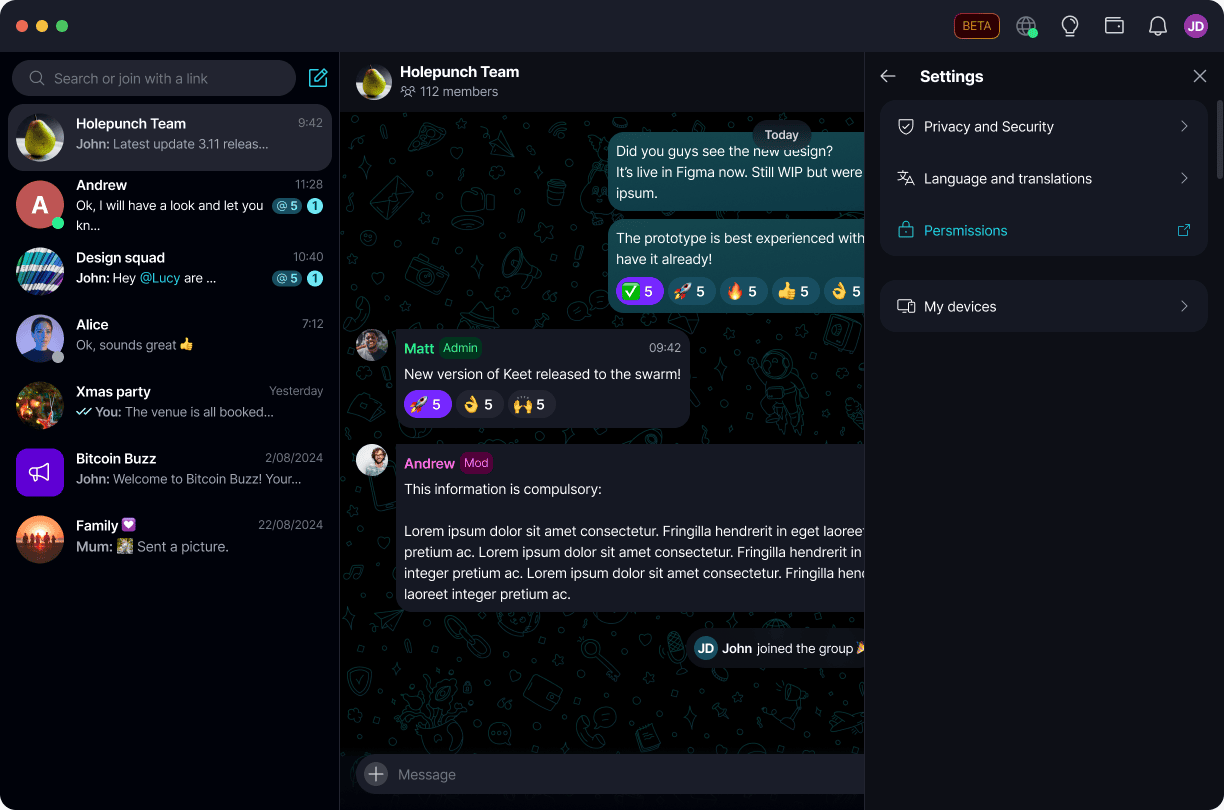
-
Under 'Message translation', select 'Language packs':
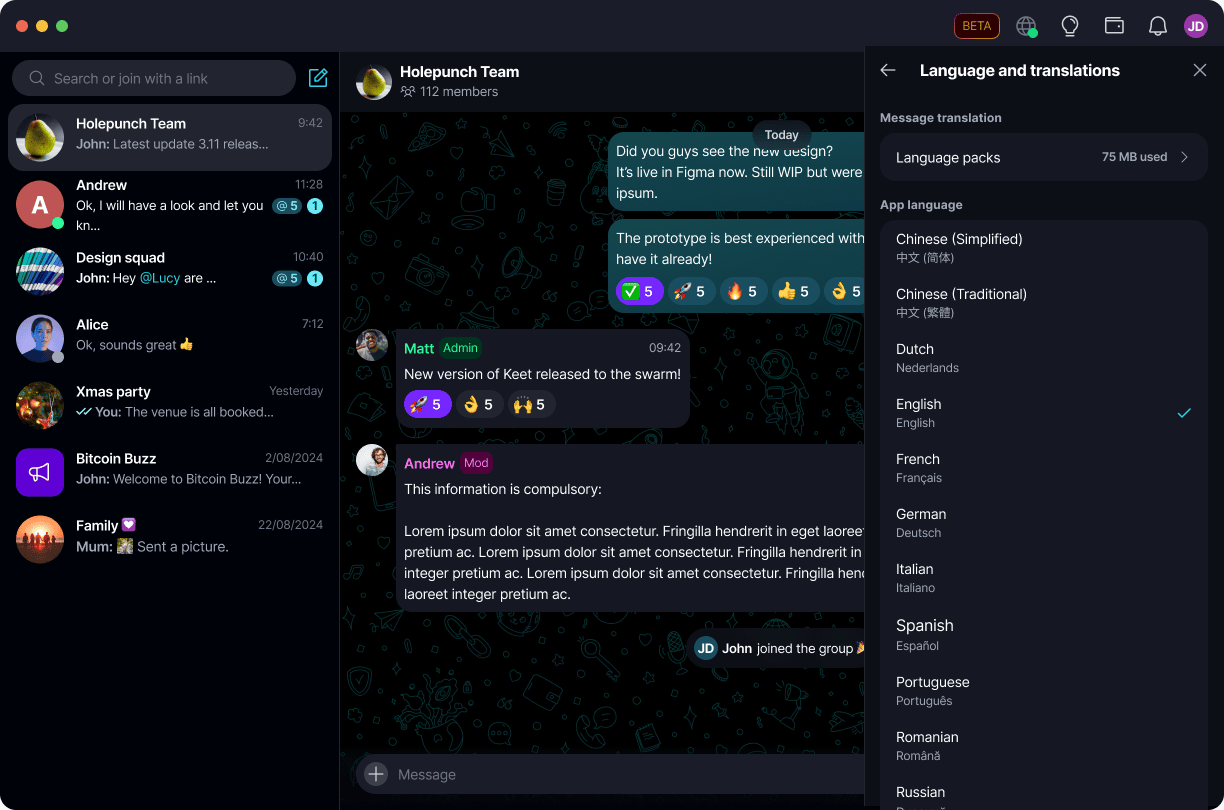
-
Go to 'Settings' and tap 'Language and translations':
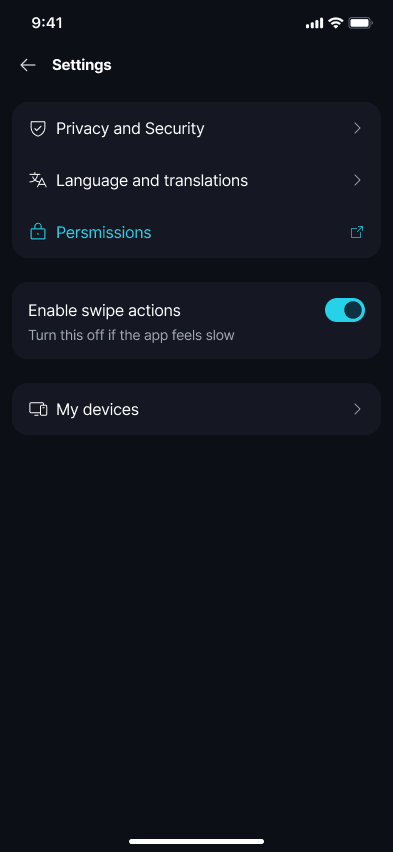
-
Under 'Message translation', tap 'Language packs':
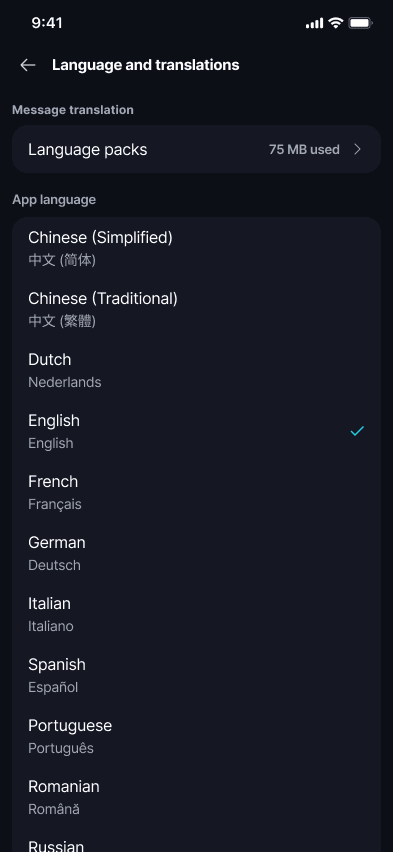
The 'Language packs' row also shows the total storage all your downloaded packs are currently using.
View your downloaded language packs
'Language packs' lists every language pair you've downloaded and the size of each pack, with the total storage used shown at the top. Each entry covers translation both ways between the two languages shown.
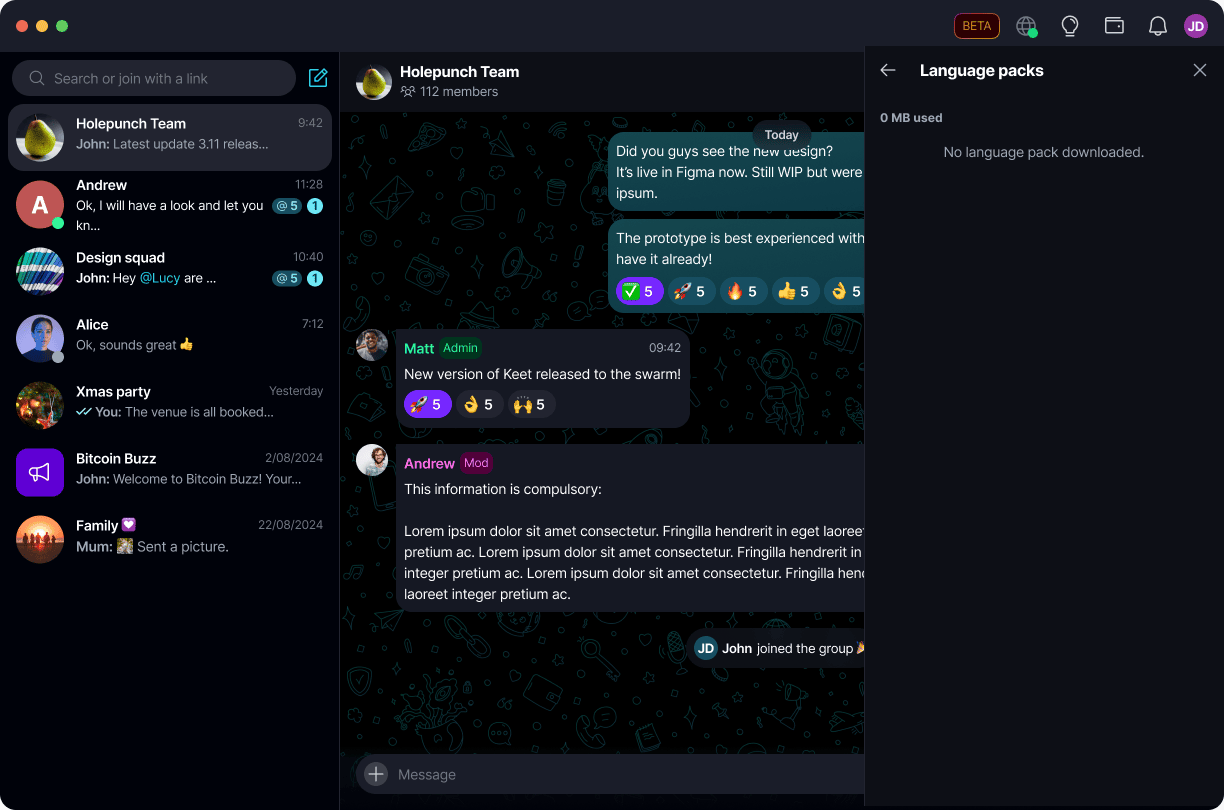
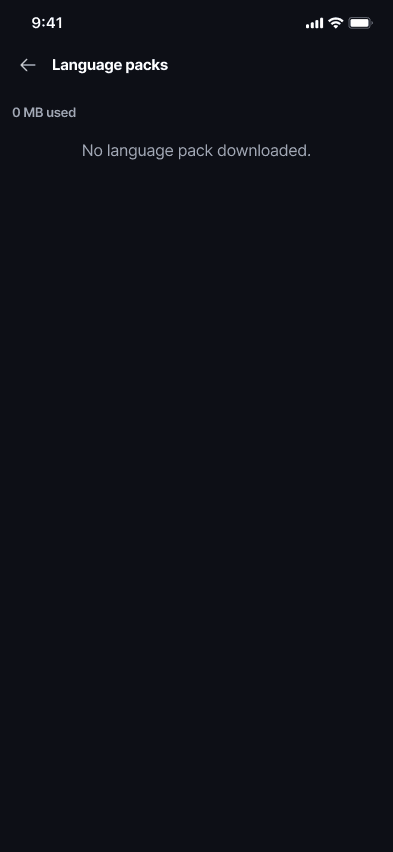
If you haven't translated any messages yet, the screen shows 0 MB used and No language pack downloaded:
Downloaded packs remain listed even after restarting Keet - you won't need to re-download a pair just because you closed the app. ♻️
Delete a language pack
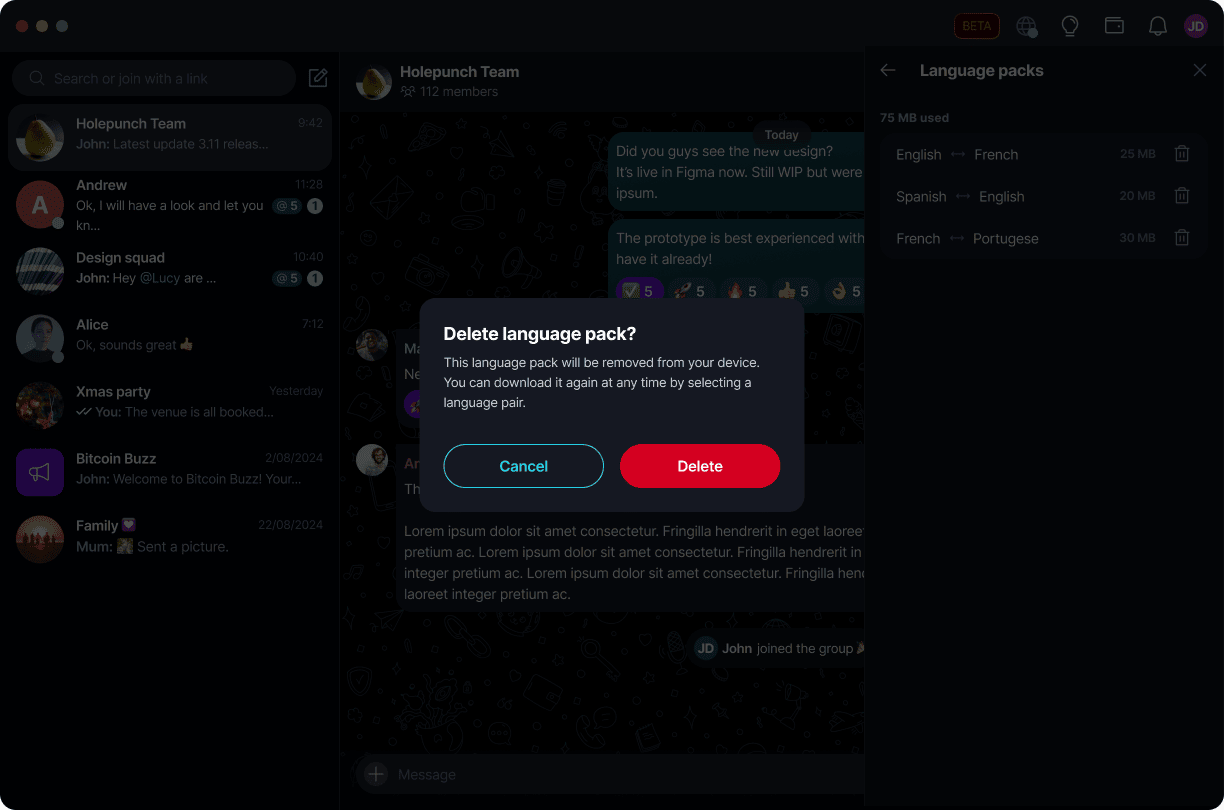
Select the delete icon next to any pair to remove it from your device.
A confirmation dialog opens - select 'Cancel' to keep the pack, or 'Delete' to remove it.
A confirmation sheet opens - tap 'Cancel' to keep the pack, or 'Delete' to remove it.
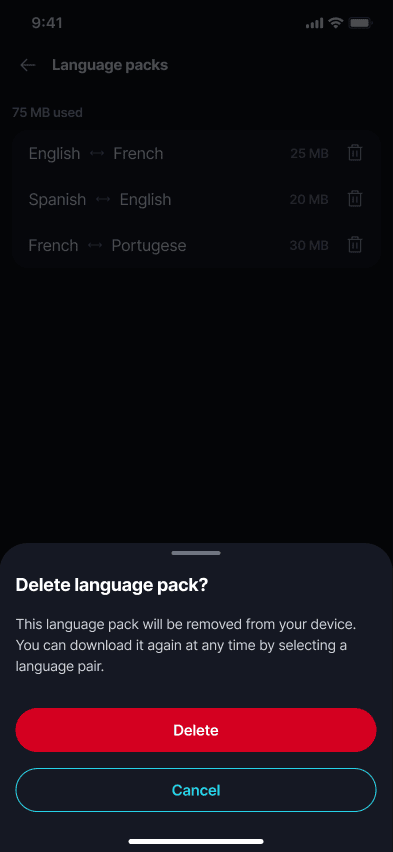
Once deleted, the pack is removed from your device and the list and total storage update immediately. You can always download the same pair again later by translating a message with it.
A pack can't be deleted while it's still downloading. If you try, Keet asks you to try again once the download finishes. ⚠️
Language packs are downloaded and stored per device, so deleting one frees up storage on that device only. 🔗